How to export a Figma prototype with a device frame
Published
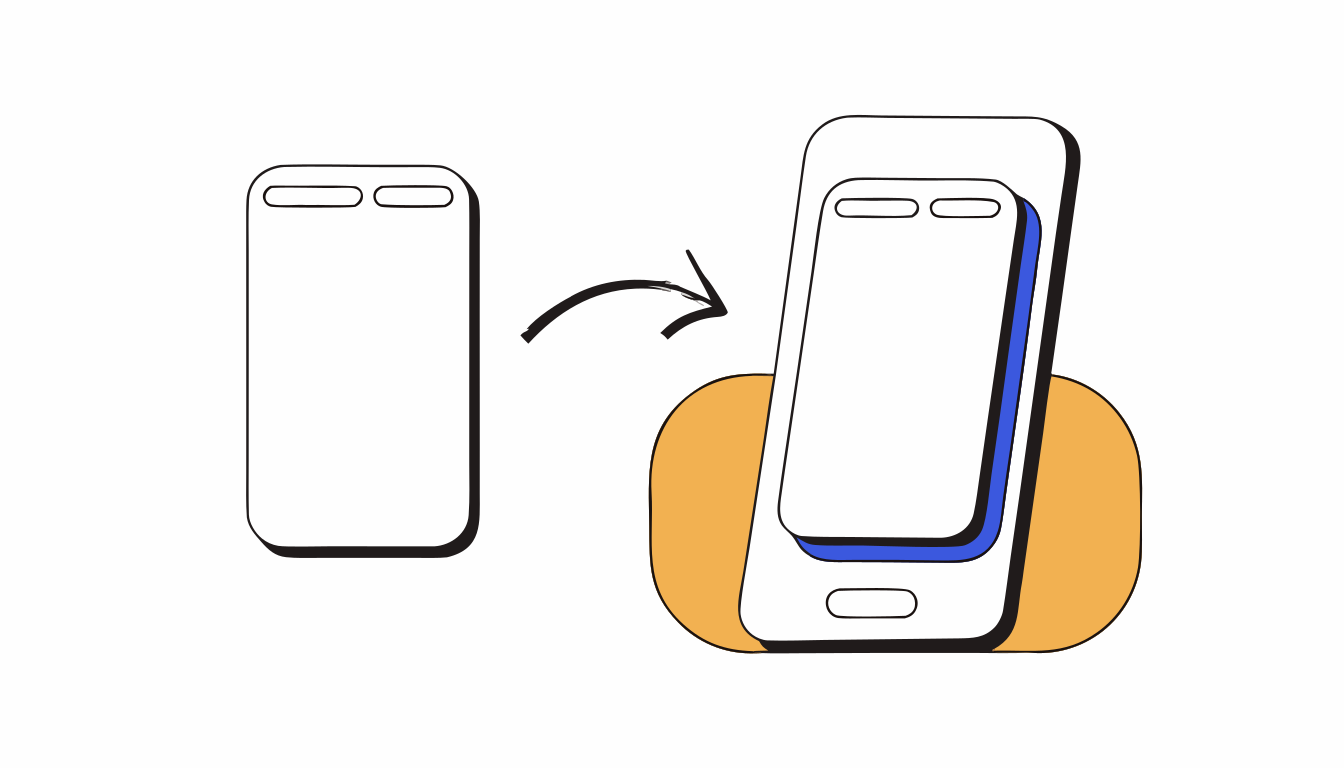
In short: Figma can show your prototype inside a device frame: in the Prototype tab, with nothing selected, pick a device and model, then turn on Show device frame in presentation view.[1][2] Figma doesn’t export that framed view. To get it as a video, you record the presentation, or use a recorder that adds the frame for you.
A bare 390 × 844 screen in a video looks like a wireframe. The same screen inside an iPhone looks like an app. That’s why “export figma prototype with device frame” is such a common search, and why the answer is a bit disappointing.
Where is the device frame setting in Figma?
- Open the page with your prototype and click an empty spot of the canvas so nothing is selected.
- In the right sidebar, open the Prototype tab.[1]
- Under Device, pick the device type, the model (and its color) and the orientation.[1]
- Under Background, pick the color shown around the device in presentation view.[1]
- Play the prototype with Present. In the options menu, Show device frame shows or hides the frame.[2]
It’s available on any plan.[1] Two details trip people up. All device presets work in presentation view, but inline preview only shows phone, watch and tablet frames.[1] And the orientation is set for the whole prototype: you can’t switch from portrait to landscape partway through.[1]
Can you export the framed prototype?
No. The frame is a presentation setting, not a layer. Figma’s exports (images, and Motion animations) don’t include it, and the prototype itself only plays.[2] So you’re back to recording the screen while the framed prototype plays, as in our guide to recording a Figma prototype on Mac.
The limits of a recorded Figma frame
- The device list is Figma’s. If the model you want isn’t there, there’s no frame for it.
- The background is one flat color.[1] Fine for a demo, a bit plain for a landing page or a Dribbble shot.
- The size depends on your screen. The frame is scaled to fit the window, so the video’s resolution is whatever your display gives you.[2]
- The cursor sits on top of the phone. On a phone mockup, a desktop pointer looks odd.
Your Figma prototype as a video, without the cursor. Proto to Video records the prototype you open with Present and exports MP4, GIF or WebM, cropped to your frame, with no cursor or Figma interface. Free for Chrome.
Add to Chrome — it's freeGoing further: add the frame when you export
Proto to Video records the prototype without a frame, then lets you choose one at export: iPhone, Android, iPad, MacBook, a browser window, or none. Device frames are part of the Pro plan; the free plan has no frame or the browser frame. Behind it, a solid color or a soft gradient scene. You can change the frame after recording, so one take gives you a phone version for social and a bare one for a ticket. No cursor on the screen, just tap circles if you want them.
FAQ
How do I add an iPhone frame to my Figma prototype?
With nothing selected, open the Prototype tab in the right sidebar, pick a device and model under Device, then play the prototype. In presentation view, the options menu has a Show device frame toggle (Figma Learn).
Why don’t I see the device frame in Figma’s preview?
Inline preview only shows phone, watch and tablet frames. Every device preset is available in presentation view (Figma Learn, Set prototype device and background settings).
Can Figma export a prototype as a mockup video?
No. The device frame is a presentation setting, and Figma doesn’t export prototypes to video. Record the framed presentation, or use a recorder that adds a device frame when you export.
Sources
- Figma Learn. Set prototype device and background settings. https://help.figma.com/hc/en-us/articles/21158597546391
- Figma Learn. Play your prototypes. https://help.figma.com/hc/en-us/articles/360040318013
Your Figma prototype as a video, without the cursor
Proto to Video records the prototype you open with Present and exports MP4, GIF or WebM, cropped to your frame, with no cursor or Figma interface. Free for Chrome.
Add to Chrome — it's free