How to record a Figma prototype on Windows
Published
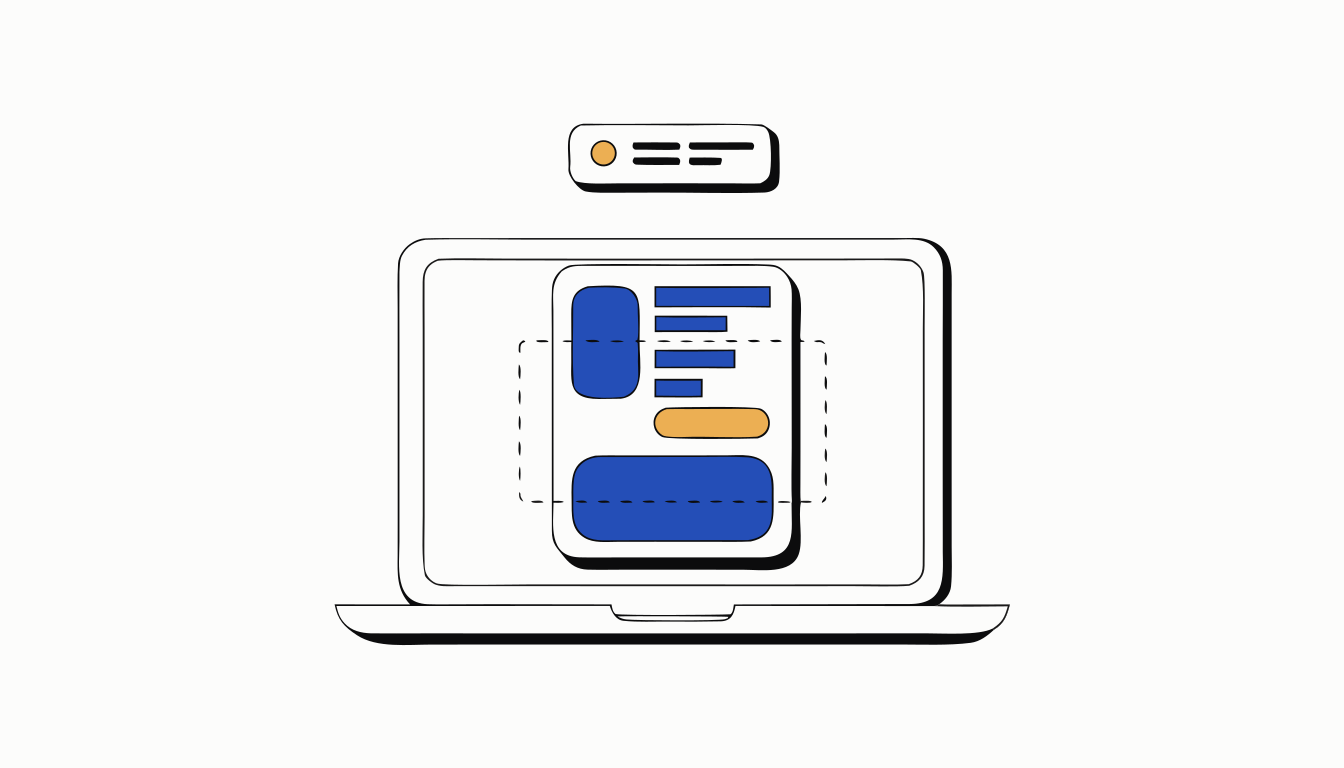
In short: Open the prototype with Present, turn on Hide UI and press R to restart.[2] Then press Windows + Shift + R, drag a box around the prototype in Snipping Tool, and click Start.[1] When you stop, the video is saved to your Screenshots folder.[1] Your cursor will be in it, so move it as little as you can.
Windows has a screen recorder built in too: Snipping Tool. It’s quick, and it’s enough for a prototype demo, as long as you prepare Figma first. Anything left on screen ends up in the video.
Prepare the prototype in Figma
- Open the prototype with Present, or Ctrl Alt Enter.[2]
- In the options menu, turn on Hide UI to hide the toolbar and footer.[2]
- Turn off Show hints on click, so a stray click doesn’t draw blue boxes in your video.[2]
- Press R to go back to the first screen.[2]
Record with Snipping Tool
- Press Windows Shift R. Snipping Tool opens in video mode.[1]
- Drag a box around the prototype.[1]
- Click Start and click through your flow.[1]
- Click Stop in the recording toolbar.
The video is saved to the Screenshots folder in Videos (or Pictures, depending on your version).[1] You can trim it with Clipchamp from Snipping Tool, or turn it into a GIF of your Figma prototype.
What Snipping Tool can’t do for a prototype
- Hide the pointer. It’s recorded, hesitations included.
- Snap to the frame. You draw the box by hand, so the edges rarely match.
- Export GIF or WebM. You get an MP4, and any other format means another tool.
- Add a device frame. For that, see how to export a Figma prototype with a device frame.
Your Figma prototype as a video, without the cursor. Proto to Video records the prototype you open with Present and exports MP4, GIF or WebM, cropped to your frame, with no cursor or Figma interface. Free for Chrome.
Add to Chrome — it's freeGoing further: record the prototype only
Proto to Video is a Chrome extension, so it works the same on Windows. Open the prototype with Present, press Alt Shift R, click through, press it again. The video is cropped to the prototype with no cursor and no Figma interface, in MP4, GIF or WebM. Tap circles show where you clicked, and you can drop it in an iPhone, Android or iPad frame. It’s free to start.
FAQ
How do I screen record a Figma prototype on Windows?
Open the prototype with Present and turn on Hide UI. Press Windows + Shift + R, drag a box around the prototype and click Start. The video goes to your Screenshots folder (Microsoft Support, Figma Learn).
Where does Snipping Tool save screen recordings?
In the Screenshots folder, under Videos or Pictures depending on your version of Snipping Tool (Microsoft Support).
Can I record a Figma prototype on Windows without the cursor?
Snipping Tool records your pointer. A recorder made for Figma prototypes, such as the Proto to Video Chrome extension, records the prototype without the cursor or Figma interface.
Sources
- Microsoft Support. Use Snipping Tool to capture screenshots. https://support.microsoft.com/en-us/windows/use-snipping-tool-to-capture-screenshots-00246869-1843-655f-f220-97299b865f6b
- Figma Learn. Play your prototypes. https://help.figma.com/hc/en-us/articles/360040318013
Your Figma prototype as a video, without the cursor
Proto to Video records the prototype you open with Present and exports MP4, GIF or WebM, cropped to your frame, with no cursor or Figma interface. Free for Chrome.
Add to Chrome — it's free